Resize PDF to 10KB: Compress Documents for Strict Portal Uploads Without Quality Loss
Meet rigid 10KB file size caps for government recruitment forms, university admission portals, and scholarship applications while keeping critical text, signatures, and stamps clear.
The Challenge of Navigating Ultra-Strict Government Upload Ceilings
Applying for government examinations, public sector recruitments, state scholarship schemes, and municipal tenders frequently involves encountering severe digital upload bottlenecks. While modern desktop scanners and smartphone cameras output document files spanning 2MB to 10MB, legacy administrative upload portals often enforce rigid file caps as low as 10KB for declarations, identity slips, and single-page certificates. When applicants try to force a document under this microscopic threshold using standard desktop editors, the result is almost always disastrous: text lines smudge into unreadable blur, official rubber stamps pixelate, and verification officers or automated server scripts immediately reject the submission on deadline day.
ToolMela’s Resize PDF to 10KB provides an engineered solution tailored specifically for these ultra-strict limits. Rather than applying blunt, destructive downsampling, our compressor restructures the document’s internal object hierarchy. It strips redundant unreferenced metadata, deflates live font streams using Flate algorithms, and recalibrates embedded raster pages using perceptual mathematical compression. The resulting file meets the rigorous 10KB upload barrier while ensuring roll numbers, dates of birth, candidate signatures, and official seals remain sharp and legible for inspecting officers.
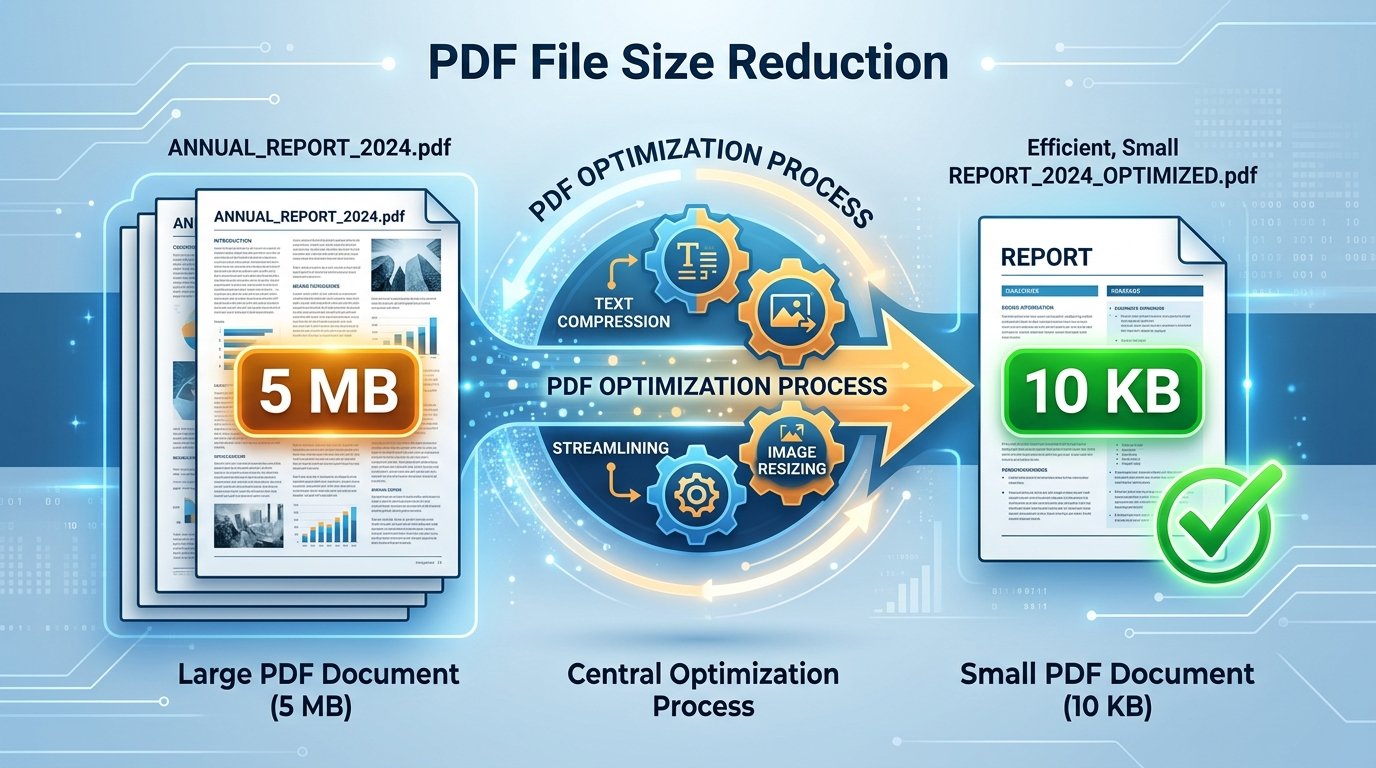
Key Features of ToolMela Resize PDF to 10KB
Specifically calibrated to compress single-page PDFs beneath the rigid 10,240-byte barrier without crashing or producing corrupted document structures.
Preserves live vector typography and high-frequency pen strokes while aggressively removing unused color profiles and duplicated font tables.
Processes documents directly inside your local browser memory in seconds, avoiding slow network upload queues and bandwidth delays.
Download clean, professional documents without third-party promotional stamps, banner watermarks, or forced subscription accounts.
Step-by-Step Guide: How to Compress a PDF to 10KB on ToolMela.com
Upload Your Source PDF
Click "Choose File" or drag your PDF directly into the 10KB compressor zone. For optimal results, ensure your document is a single page containing only the necessary declaration, receipt, or certificate.
Automated Stream Deflation
The tool automatically executes multi-pass compression math in local memory, removing unneeded XML metadata, trimming padding bytes, and downsampling raster page streams toward the 10KB target.
Inspect Output Clarity
Check the real-time size readout to confirm the file is safely under 10KB. Review the on-screen preview to verify that names, numbers, and signatures remain distinct.
Download and Submit
Click "Download PDF" to save the compressed file directly to your device storage. The output is fully ready for immediate upload to your target government recruitment or scholarship portal.
100% Privacy & Client-Side Data Security Assurance
When dealing with sensitive personal records—such as caste certificates, income affidavits, bank payment receipts, or personal declarations—uploading files to unknown third-party conversion servers poses severe confidentiality risks. Many free utility sites retain uploaded files in temporary cloud storage buckets, creating vulnerabilities for identity theft or unauthorized access.
ToolMela is built from the ground up on a zero-upload, 100% client-side architecture. All document decoding, stream deflation, and WebAssembly re-encoding occur entirely inside your web browser’s local sandbox memory. Your PDF files are never uploaded to ToolMela servers, never written to external cloud drives, and never analyzed by remote tracking systems. Once you finish your download and close the tab, all file traces in browser RAM are instantly and permanently purged.
Frequently Asked Questions (FAQ)
Can a scanned certificate or multi-page document really be reduced to 10KB?
A 10KB limit is one of the tightest constraints possible for PDF containers. Single-page documents consisting primarily of digital text, receipts, signatures, or declarations compress effortlessly to under 10KB. For multi-page scanned documents or color certificates, you should extract only the single required page, convert color to grayscale, and crop blank margins before compressing to hit 10KB while keeping text legible.
How do I ensure small text, certificate numbers, and stamps remain legible at 10KB?
To maximize readability at 10KB, start with a high-contrast black-and-white scan rather than a dark camera photo with shadows. ToolMela's compression engine optimizes stream deflation and Flate encoding to discard redundant metadata while keeping high-frequency stroke outlines intact. Always open and inspect the downloaded PDF at 100% zoom before portal submission.
Which recruitment, exam, and scholarship portals mandate a 10KB PDF ceiling?
Several state public service commissions, police recruitment boards, rural banking recruitment bodies, and state scholarship schemes enforce strict 10KB to 20KB limits for document annexures, declarations, and scanned thumb impressions. This tool is pre-configured to calibrate compression streams specifically beneath this ceiling.
Are my confidential certificates or financial proofs uploaded to ToolMela servers?
No. All PDF stream restructuring and downsampling operations run 100% client-side inside your web browser using WebAssembly. Your document bytes never leave your device, travel across external network connections, or get logged on remote servers.
