Compress PDF to 75KB Online: Precision Document Reduction for Official Applications
Downsize certificates, marks sheets, and signed forms under 75KB while preserving critical seals, signatures, and printed serial numbers.
Meeting Rigid 75KB Upload Guidelines Without Compromising Clarity
Digital application portals for police recruitment drives, public sector recruitment, and university graduate admissions frequently establish strict document limits. Among these restrictions, the 75KB threshold is a widespread ceiling for scanned educational certificates, domicile documents, caste declarations, and signed identity forms. Submitting a file measuring even 78KB results in an immediate upload failure, while haphazard file downsizing can degrade official seals and registration numbers beyond recognition.
Standard office software and basic mobile converters rarely offer precise file targeting. Most generic utilities either compress too lightly, leaving documents well above 75KB, or apply heavy downsampling that turns crucial roll numbers and signature lines into blurry artifacts. To compress PDF to 75KB online successfully, you need an intelligent utility that removes redundant metadata and fine-tunes image compression without destroying textual legibility.
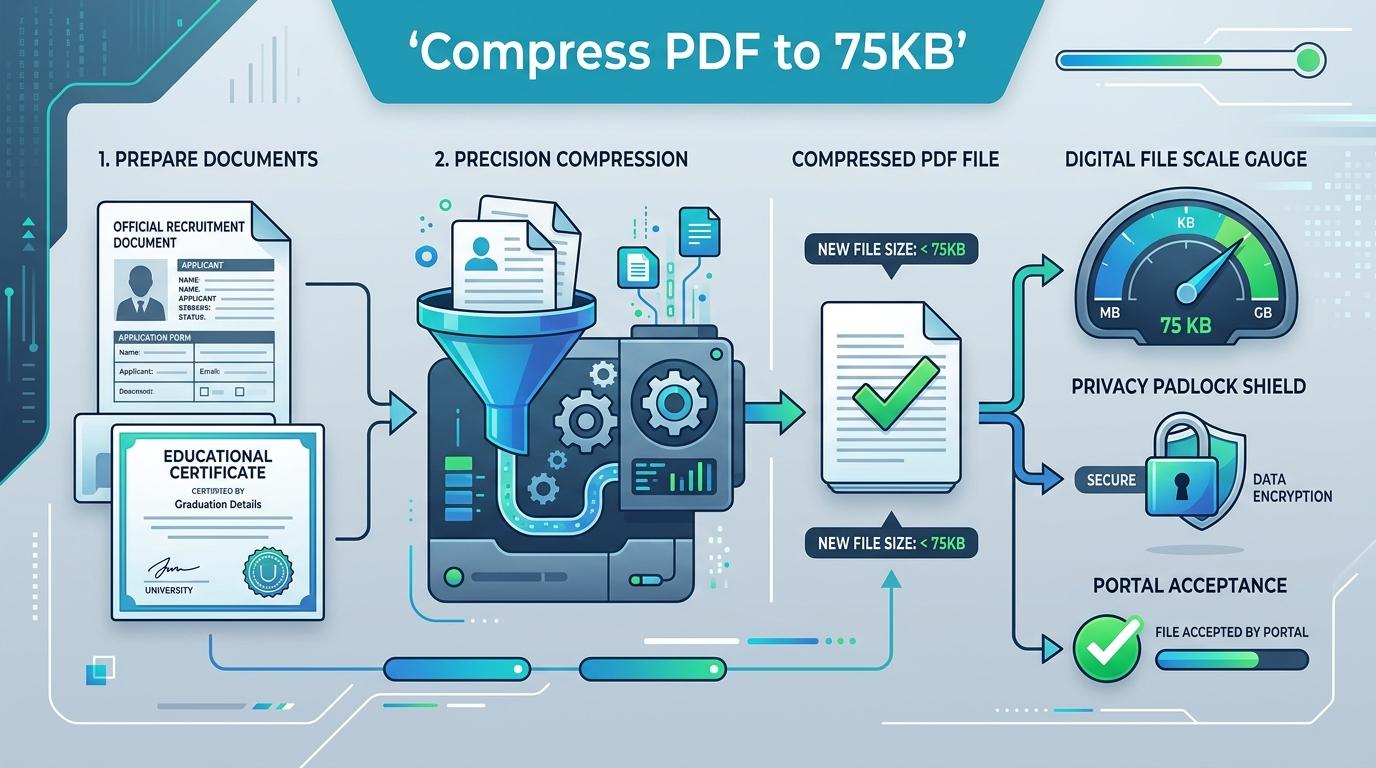
ToolMela provides an in-browser solution designed specifically for this requirement. Our client-side compressor lets you reduce PDF size to 75KB using adaptive quality testing and smart raster scaling. Whether you need to compress PDF under 75KB for a government job, resize PDF to 75KB, compress PDF below 75KB, shrink PDF to 75KB, compress PDF file to 75KB, or reduce PDF to 75KB online free without exposing sensitive paperwork to remote servers, our pdf compressor 75kb delivers compliant, readable records in seconds.
Why People Use This Tool
Entrance exam and recruitment servers enforce a strict 75KB cap. Our engine targets this limit to guarantee immediate upload acceptance.
Personal credentials, marks sheets, and signed forms are processed in browser memory with zero server uploads.
Multi-pass quality optimization preserves sharp contrast around names, roll numbers, and official government stamps.
Optimize documents instantly without subscription fees, registration, or watermarked outputs.
Inspect exact before-and-after file sizes and reduction percentages right away before submitting.
Runs smoothly on desktop computers, laptops, tablets, and smartphones across Windows, macOS, Android, and iOS.
How to Use the Tool
Upload Your PDF
Click the upload area to choose your document, or drag and drop your PDF directly into the tool.
Local Document Inspection
The engine analyzes your file locally, evaluating page count, dimensions, embedded raster layers, and metadata.
Calibrated Multi-Pass Optimization
The tool tests compression levels to reduce the document under 75KB while maintaining optimal sharpness.
Inspect Size Comparison
Check the displayed initial size, final compressed size, and total reduction percentage.
Download the PDF
Click download to save your 75KB-compliant document directly to your device.
Understanding the Output
A 75KB file size limit provides approximately 76,800 bytes of total data budget. For a single-page PDF—such as a degree certificate, marks statement, character certificate, or admit card—this budget offers generous headroom. Compared to tighter limits like 30KB or 50KB, 75KB allows the engine to preserve higher pixel resolution and cleaner text edges, ensuring that candidate portraits, embossed seals, and fine serial codes stay legible.
However, file limits always apply to the whole document rather than individual pages. If you upload a multi-page document containing three or more pages, the 75KB allowance must be divided across every page, leaving roughly 18KB to 25KB per page. This compels the compressor to downscale images more aggressively. For multi-page submissions, compress single-page documents individually whenever application portals allow separate attachments.
Privacy & File Handling
Confidentiality is critical when handling sensitive personal records, academic transcripts, and identification paperwork. Many web-based compressors upload your files to external cloud servers, store copies in temporary caches, or generate remote processing logs that could expose your private information.
ToolMela takes a completely private approach by executing all compression routines locally within your web browser sandbox. Your document is rendered and compressed using client-side JavaScript, HTML5 Canvas, and WebAssembly technologies. At no point is your PDF transmitted across the internet or saved on an external server. Once you finish downloading your file and close the tab, all working data disappears from device memory.
Useful Tips for Best Results
Trim Unnecessary Borders
Dark scanner margins and excessive whitespace waste significant bytes. Crop documents neatly before converting them to PDF.
Choose Grayscale for Certificates
If your certificate consists primarily of black text and ink stamps, scanning in grayscale eliminates unnecessary color channels, resulting in crisper typography at 75KB.
Compress Pages Separately
When an application demands multiple certificates, upload them as individual single-page files rather than one combined packet.
Review Output at 100% Zoom
Always open your downloaded PDF in a standard viewer and inspect candidate names, roll numbers, and dates at actual size before uploading.
Common Problems and Solutions
Output Remains Slightly Over 75KB
This happens when multi-page files contain high-resolution color photographs. Crop wide borders, convert scans to grayscale, or split multi-page files before re-compressing.
Text or Stamp Details Appear Soft
If printed characters look faint, the original scan may have suffered from camera shake or low resolution. Re-scan the paper document on a flatbed scanner at 150 to 200 DPI under even lighting.
Password-Protected PDF Errors
Client-side engines cannot parse locked files without credentials. Open the document in your PDF viewer, remove password restrictions, and try compressing again.
Portal Rejection Despite Correct Size
Check if the submission website enforces strict file naming rules. Avoid spaces and special characters in your filename (use "degree_75kb.pdf" rather than "my degree (1).pdf").
Frequently Asked Questions
Why do certain job and academic portals require a 75KB file size limit?
Recruitment boards and universities process tens of thousands of applicants simultaneously. Enforcing a 75KB limit prevents server bottlenecks while allowing just enough resolution for verification officers to read marks, registration numbers, and official signatures clearly.
Can a 2-page or 3-page PDF stay legible under 75KB?
Yes, but legibility depends on content density. A two-page document with standard printed text compresses cleanly under 75KB. If the file contains three or more scanned pages with detailed emblems, the reduced per-page budget may soften fine details. Splitting into single pages produces the best visual quality.
Does ToolMela store or see my uploaded documents?
No. All processing happens entirely inside your local web browser. Your PDF is never uploaded to ToolMela's servers, never stored in cloud databases, and never inspected by third parties. Your data remains strictly on your local device.
What should I do if my compressed PDF still looks slightly blurry?
Start with a cleaner original scan. Scans captured on flatbed scanners at 150–200 DPI in grayscale compress much better than mobile photos taken under uneven lighting. Cropping dark margins also saves bytes that the compressor can allocate to textual sharpness.
Final Verification Before Submission
After downloading your compressed 75KB PDF, always open the file in a standalone PDF viewer and verify all critical fields—such as candidate name, date of birth, roll numbers, and official signatures—at full zoom before submitting to your target portal.
