OPSC Photo Resizer: Format Photo and Signature for Odisha PSC Forms
Every recruitment cycle, tens of thousands of applicants register for prestigious state government positions through the Odisha Public Service Commission (OPSC). Whether competing for premier administrative cadres in the Odisha Civil Services (OCS) Examination—including the Odisha Administrative Service (OAS), Odisha Police Service (OPS), and Odisha Finance Service (OFS)—or applying for critical posts such as Assistant Section Officer (ASO), Medical Officer, Assistant Professor, Lecturer, and Judicial Magistrate, candidates must complete their applications on the Commission's official web portal (opsc.gov.in).
During online registration and profile setup, the OPSC recruitment server enforces strict automated validation filters on uploaded candidate files. The applicant's photograph must conform to standard portrait proportions of 320 × 400 pixels (or 3.5 cm × 4.5 cm) with file weight strictly confined within a 20 KB to 50 KB bracket (or up to 100 KB in certain specialized advertisements), captured against a clean, plain white or light-tinted background. Official examination guidelines explicitly reject photographs displaying spectacles, reading glasses, sunglasses, caps, mufflers, or hair obscuring facial contours and ears. Specimen signatures must measure 250 × 150 pixels with a file size between 10 KB and 20 KB (or up to 50 KB) executed with dark black or blue ink on unlined white paper.
Modern smartphones capture high-resolution images yielding files between 5 MB and 15 MB with non-compliant aspect ratios, textured domestic walls, and uneven shadows. Manually resizing and recompressing these files with standard mobile editors often introduces pixelation, unnatural facial distortion, or broken signature strokes that trigger immediate portal rejections or administrative delays during scrutiny. The ToolMela OPSC Photo Resizer provides an integrated, browser-based solution tailored directly to these recruitment requirements. Featuring locked official aspect ratios, client-side artificial intelligence for instant white background replacement, target file size sliders, and standard 300 DPI metadata injection, applicants can generate validated, portal-compliant files within seconds.
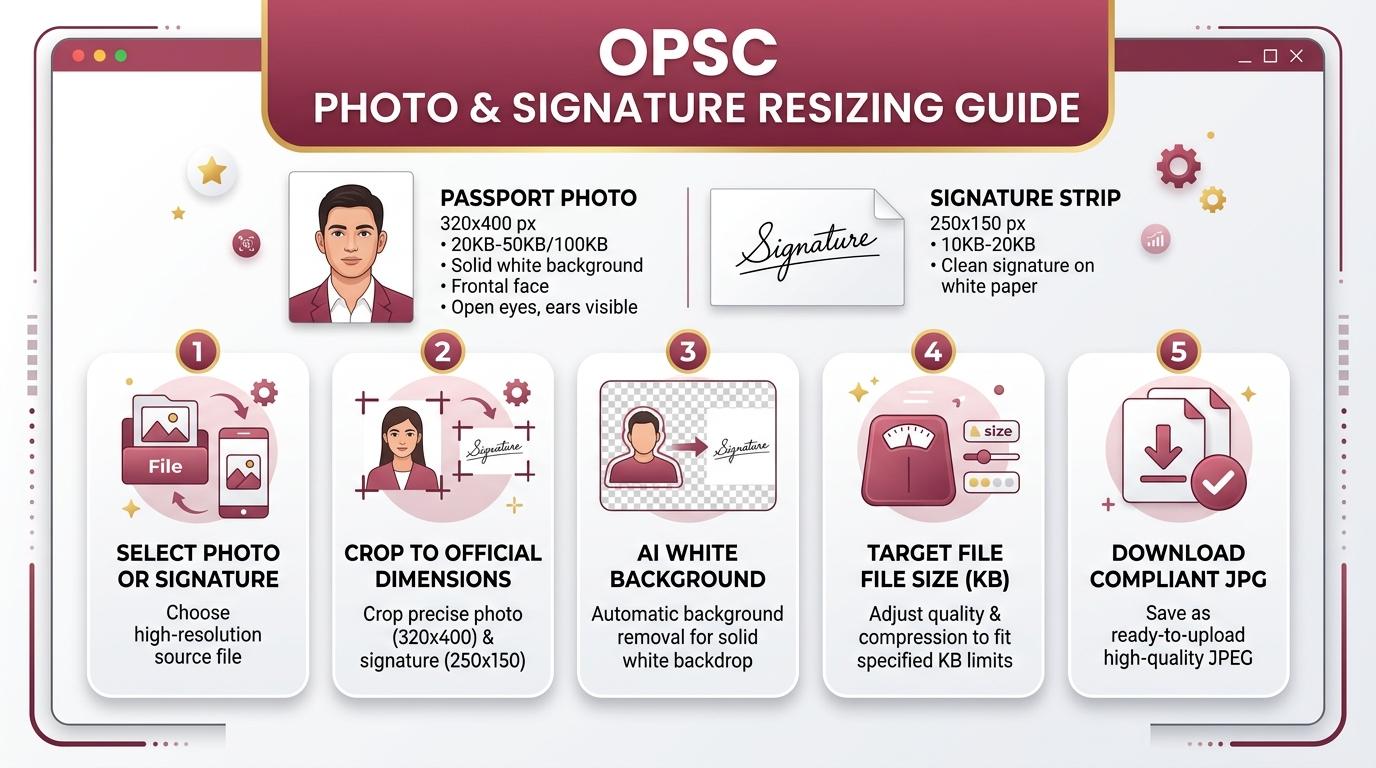
Visual Guide: Formatting passport photographs and signatures to official Odisha Public Service Commission (OPSC) specifications on ToolMela.
Why People Use This Tool
- Locked OPSC Aspect Ratios: Automatically locks the cropping canvas to 320 × 400 pixels for photographs and 250 × 150 pixels for signatures, eliminating facial stretching and portal upload errors.
- Accurate Target File Size Slider: Allows candidates to dial in their desired file weight accurately within the mandatory 20 KB to 50 KB photo range and 10 KB to 20 KB signature range.
- AI Plain White Background: Automatically detects portraits and replaces uneven domestic walls with an official solid white studio background using client-side neural networks.
- Binary 300 DPI Header Injection: Encodes standard 300 dots-per-inch density metadata directly into the JPEG JFIF APP0 header to ensure crisp reproduction on printed admit cards and roll lists.
- Optional Candidate Details Overlay: Includes a built-in text overlay generator to print the applicant's name and photo capture date onto the base of the photograph if mandated by specific circulars.
- Zero-Upload Local Privacy: Executes all image scaling, cropping, background removal, and compression entirely inside your web browser without transmitting files to remote servers.
How to Use the Tool
- Select your target document type by clicking either Photo or Signature at the top of the resizer tool.
- Drag and drop your camera photo or scanned file (JPG, JPEG, PNG, or WebP) into the upload box, or tap to choose a file from your device.
- On the Crop tab, center your face inside the 320 × 400 cropping frame—verifying level shoulders, open eyes, and visible ears—then click Next.
- On the Background tab, review the background. If the original image was taken against a colored wall or textured background, click Remove Background to render a clean white backdrop.
- On the Settings tab, set the target file size slider to your preferred value within the 20 KB to 50 KB bracket (35 KB is recommended), confirm the rule checklist, and enable "Print Details" if your notification requires name and date stamps.
- Click Process Image to trigger client-side canvas scaling, iterative quality compression, and 300 DPI JFIF header writing.
- On the Download tab, review the live preview and resulting file metrics, then click Download to save your compliant JPG file. Repeat the workflow for your signature.
Understanding the Output
Commission recruitment portals analyze incoming files for geometric fidelity, binary file integrity, and visual legibility. Verifying these parameters prior to submission protects your candidature from rejection:
- Photograph Dimensions & Geometry: The exported photograph measures exactly 320 pixels wide by 400 pixels high (a 4:5 vertical aspect ratio). The candidate's face must occupy 70% to 80% of the vertical frame, exhibiting sharp eyes and visible ears against an even white backdrop.
- Signature Dimensions & Contrast: The exported signature measures 250 pixels wide by 150 pixels high (a 5:3 horizontal aspect ratio) within the 10 KB to 20 KB range, delivering high-contrast, dark ink strokes on an unblemished white surface without clipped letters.
- Embedded 300 DPI Metadata: ToolMela writes standard 300 DPI density tags into the JFIF binary stream, ensuring that admit cards, physical roll registers, and biometric sheets print cleanly at test centres.
- Pre-Submission Checklist: Open your downloaded files in your computer or mobile image viewer to verify that facial contours are crisp, no glasses or head coverings are present, and the signature is dark and legible.
Privacy & File Handling
Candidate photographs and handwritten signatures represent sensitive personal identity credentials. ToolMela guarantees total confidentiality through its client-side architecture:
- In-Browser Execution: Image rendering, AI background segmentation, cropping transformations, and JPEG compression algorithms execute entirely within your device's web browser using client-side JavaScript, HTML5 Canvas, and WebAssembly.
- Zero Remote Data Transmission: Your photographs, signatures, and personal details are never uploaded to ToolMela servers, external APIs, or cloud storage buckets.
- Immediate Local Memory Clearance: Files loaded into the tool reside strictly in temporary browser RAM and are discarded immediately when you refresh the page, navigate away, or close your browser tab.
- Safe for Public Cyber Cafes: Aspirants preparing applications at commercial computer kiosks, cyber cafes, or Mo Seba Kendras across Odisha can format their documents without leaving copies stored on remote web servers.
Useful Tips
- Strictly Remove Eyeglasses and Spectacles: OPSC examination authorities reject application photographs showing reading glasses, prescription spectacles, or tinted lenses due to flash reflection and eye-line obstruction. Always take your photo without glasses.
- Keep Both Ears Completely Visible: Comb your hair back and ensure headwear, scarves, or religious caps do not conceal your ears, temples, or forehead. Facial verification staff cross-reference ear contours during document verification.
- Sign on Blank White Paper with Black or Dark Blue Ink: Write your signature using a fresh black or dark blue gel or ballpoint pen on unlined printer paper. Avoid lined notebook paper, as ruled lines disrupt automated verification algorithms.
- Avoid All-Capital Letter Signatures: Examination authorities mandate signatures in standard running handwriting. Signatures written entirely in block capital letters or abbreviated initials are routinely rejected.
- Preserve the Original Master Photograph: Keep the original uncropped digital photograph on your phone or computer. You will need identical physical prints during the Mains examination, interview board, and final document scrutiny.
Common Problems and Solutions
Problem: The portal displays an error saying "File size must be between 20 KB and 50 KB".
Solution: On the Settings tab of the tool, set the target file size slider to 35 KB or 40 KB and click "Process Image" again. This ensures the output sits safely in the center of the acceptable file size range.
Problem: The candidate's light shirt blends into the white background after background removal.
Solution: If wearing white clothing against a light wall, edge boundaries can soften. Switch the AI model dropdown in the Background tab to an alternate engine, or take a photograph wearing dark clothing so the edge detection algorithm segments the portrait cleanly.
Problem: The signature looks jagged or faint after compression.
Solution: Ensure your original signature was drawn with firm pressure using black ink. Re-crop the signature tightly around the text to eliminate excessive empty margins before processing.
Problem: The portal rejects the file format.
Solution: Ensure you are uploading the processed JPG file downloaded from ToolMela, rather than raw PDF or WebP files, as OPSC portals accept only standard JPG/JPEG formats.
Frequently Asked Questions
What are the official photo and signature specifications for OPSC online applications?
For OPSC online applications, passport photographs must measure 320 × 400 pixels (or 3.5 cm × 4.5 cm) with a file size between 20 KB and 50 KB (or up to 100 KB depending on the notification). Signatures must measure 250 × 150 pixels (or 4.0 cm × 2.0 cm) with a file size between 10 KB and 20 KB (or up to 50 KB). Both files must be saved in JPG or JPEG format.
Can I wear spectacles or sunglasses in the OPSC application photograph?
No. Commission guidelines strictly prohibit spectacles, reading glasses, sunglasses, caps, hats, and mufflers. Both eyes must be open and both ears must be clearly visible against a plain white background. Photographs showing glasses or head coverings that obscure facial features will be rejected.
What should I do if the OPSC portal states my file size exceeds the allowed limit?
On the Settings tab of the ToolMela resizer, pull the target file size slider down to 35 KB or 40 KB and click 'Process Image' again. The tool's quality compression engine will automatically calibrate the image so that the resulting file stays comfortably within the official limit without compromising clarity.
Is my personal photo or signature uploaded to any server during processing?
No. ToolMela processes all image scaling, cropping, AI background replacement, and file compression locally inside your web browser. No files, personal data, or biometric documents are ever uploaded to ToolMela servers or third-party storage.
