Auto Aadhaar PVC Crop Tool – Extract Front and Back Cards for Instant Printing
When you download an official e-Aadhaar document from the UIDAI portal, you receive a full-page multi-section PDF containing instructions, personal details, a masked or regular card section, and official notices. If you want to create a compact, wallet-sized identity card—whether printing on a desktop inkjet printer, photo paper, or a dedicated thermal PVC card machine—turning that document into a clean physical card can be surprisingly tedious.
Manually cropping both sides with general image editors often leads to uneven borders, distorted aspect ratios, clipped security text, or blurry QR codes. Even a slight miscalculation in pixel dimensions can cause the card to print either too large for a standard card slot or too small to read clearly.
The ToolMela eaadhaar auto pvc crop tool automates this exact process. It opens your downloaded PDF, locates the front and back card portions, splits them cleanly, and formats both sides into the standard CR80 physical card size (85.6 mm × 54 mm) at your chosen resolution.
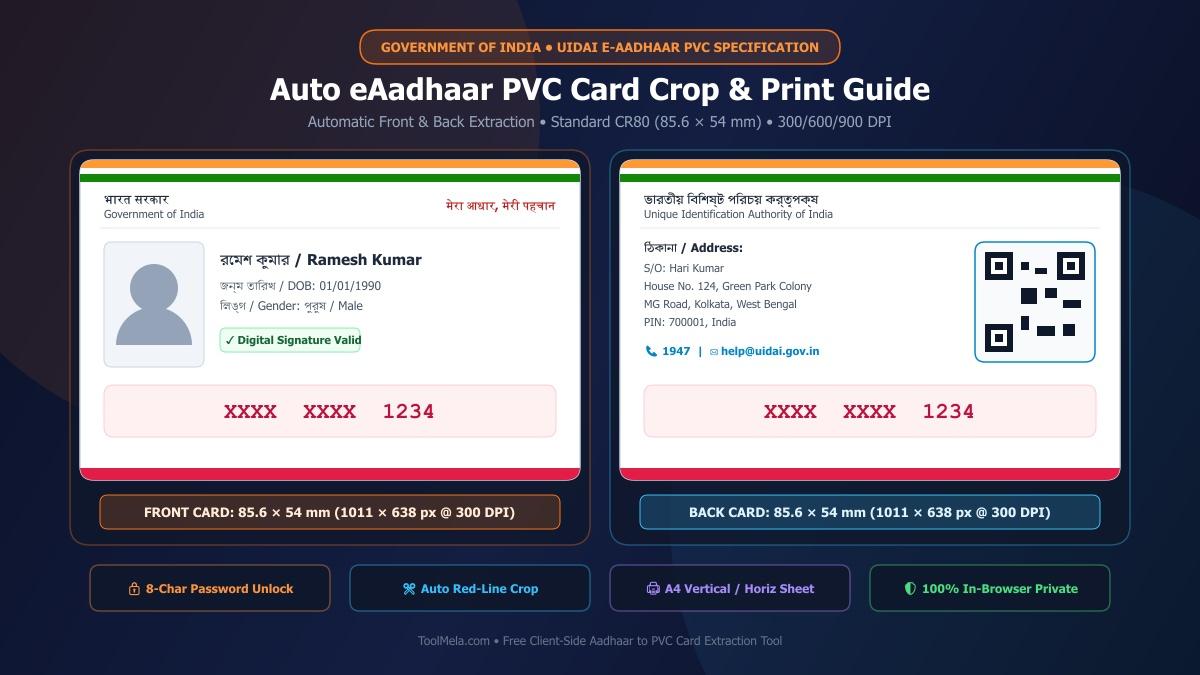
Visual Guide: Automatically extracting front and back eAadhaar card sides to standard CR80 PVC dimensions (85.6 × 54 mm) on ToolMela.
Why People Use This Tool
- Automated boundary detection: Instead of manually dragging crop boxes and guessing where the card edges lie, our auto aadhaar crop engine scans the document layout to isolate both front and back panels automatically.
- Standard CR80 dimensions: Output cards are calibrated to the global identity card standard (85.6 mm × 54 mm), matching the physical dimensions of bank cards, driver licenses, and wallet sleeves.
- Adjustable print resolution: Choose between 300 DPI (1011 × 638 px), 600 DPI (2022 × 1276 px), or 900 DPI (3033 × 1913 px) depending on whether you are using a standard office printer or high-precision photo equipment.
- Direct A4 print layouts: Generate pre-aligned A4 print sheets in either vertical or horizontal arrangements with proper 10 mm spacing, making it simple to print eaadhaar a4 paper for two-sided lamination or pouch insertion.
- Client-side security: Decryption and image processing happen entirely on your computer or phone using browser-based rendering, keeping your identity document offline.
- Individual image exports: Download separate high-resolution JPEG files for both the front and rear sides with a single click.
- Eliminates cut-off errors: Calibrated specifically to prevent cutting through the barcode, address text, or QR verification block found on modern UIDAI documents.
How to Use the Tool
Follow these simple steps to perform an eaadhaar pdf crop and prepare your card for printing:
- Select your desired print quality: Before uploading, choose your target DPI—300 DPI for standard printing, or 600 / 900 DPI for ultra-fine text and sharp QR codes.
- Select your e-Aadhaar PDF: Click the upload area to browse your device storage or drag and drop your official PDF file directly into the dropzone.
- Enter the document password: If your file is encrypted (standard for UIDAI downloads), type the eight-character unlock code—the first four letters of your name in capital letters followed by your four-digit birth year (for example,
KUMA1992). - Initiate the extraction: Submit the password to let the tool decrypt the document and locate the card sections.
- Review the front and back previews: Check both extracted cards on screen to verify that the photo, address, and QR codes are sharp and completely visible.
- Download or print: Click Download Front and Download Back to save individual high-resolution JPEG images, or select Vertical Layout or Horizontal Layout under the print bar to send the card directly to your printer.
Understanding the Output
Before printing or submitting the resulting graphics, take a moment to review the final files against your intended use:
- Dimensions and aspect ratio: The generated files follow the exact 1.585 width-to-height ratio of a standard aadhaar cr80 pvc card. At 300 DPI, the files measure 1011 × 638 pixels. At 600 DPI, they measure 2022 × 1276 pixels.
- Text sharpness: Examine smaller elements such as your date of birth, gender, Aadhaar number, and address lines to ensure no blurriness or compression artifacts occurred during rendering.
- QR code and barcode integrity: The verification QR code on the front and back must remain crisp and unscrambled so that scanner apps and verification devices can read them without error.
- Color reproduction: Official UIDAI documents use distinct red headers, national emblem artwork, and subtle background patterns. Check that the extracted image preserves these hues accurately without clipping highlights.
Privacy & File Handling
Identity documents contain sensitive personal information, including full names, dates of birth, residential addresses, and biometric identification numbers. Because of this, file security is a primary concern.
The ToolMela Auto Aadhaar PVC Crop tool operates entirely inside your web browser using client-side JavaScript and the HTML5 Canvas API. When you select your PDF and type your decryption password:
- The file is loaded directly into your local browser memory.
- The password is used solely by your local browser session to read the PDF pages.
- No file contents, personal data, or rendered images are uploaded, sent, or saved to any ToolMela server or external storage network.
- Once you close or reload the browser tab, your document and password are cleared from temporary local memory.
Useful Tips for Card Printing
- Set printer scale to 100%: When printing the A4 layout sheet, always select “Actual Size” or set custom scaling to “100%” in your system print dialog. Avoid “Fit to Printable Area,” which will alter the physical size of the card.
- Use heavy photo paper or PVC sheets: For durable results, print on 250+ GSM glossy inkjet paper or specialized inkjet-printable PVC sheets before running the card through a thermal laminator.
- Keep your original PDF intact: Store your downloaded UIDAI PDF in a secure folder on your computer so you can re-generate prints whenever required without downloading a new copy.
- Verify password capitalization: If the unlock prompt rejects your input, verify that your keyboard caps lock is active; e-Aadhaar passwords strictly require uppercase letters.
- Select 600 DPI for high-end card printers: If you use a dye-sublimation or thermal transfer PVC printer, selecting 600 DPI provides sharper micro-text and crisp barcode edges.
Common Problems and Solutions
- Password not accepted: Ensure you have entered exactly the first four letters of your first name in uppercase followed immediately by your four-digit birth year with no spaces (for example,
ANIL1985). If your first name has only three letters, use those three letters followed by your birth year. - Printed card is slightly too large or too small: This almost always happens when the printer software defaults to “Fit to Margins” or “Scale to Page.” Switch your print settings to “Actual Size” or “100%.”
- Print window does not open: If clicking the vertical or horizontal layout button produces no visible output, your browser may be blocking pop-up windows. Enable pop-ups for ToolMela to allow the dedicated print view to appear.
- Unsupported file error: Make sure you are selecting the original, digitally signed vector PDF downloaded directly from UIDAI. Scanned image files, mobile photos of physical cards, and non-PDF formats cannot be read by this automatic cropper. If you have an image or an older format, use our manual Aadhaar Card Crop Tool.
Explore Related PVC Crop Tools
Frequently Asked Questions
What password do I need to enter to unlock my e-Aadhaar PDF?
Official UIDAI e-Aadhaar documents are password-protected by default. The standard password combination consists of the first four letters of your first name in capital letters followed by your four-digit year of birth (for example, RAME1995).
What exact dimensions does this tool produce?
The tool exports cards formatted to the standard CR80 physical specification (85.6 mm wide by 54 mm tall with rounded 3 mm corners). In digital pixels, this equals 1011 × 638 pixels at 300 DPI, 2022 × 1276 pixels at 600 DPI, and 3033 × 1913 pixels at 900 DPI.
Does ToolMela save my document or identity details?
No. All PDF loading, password decryption, coordinate extraction, and image rendering occur locally in your web browser. Neither your original document, your password, nor your extracted identity cards are transmitted to or stored on ToolMela servers.
Can I print both sides on standard A4 paper?
Yes. The built-in print action bar includes dedicated Vertical Layout and Horizontal Layout options that place both the front and back cards onto a standard A4 page with 10 mm spacing, ready for cutting, folding, and lamination.
Need to crop other identity or PVC cards?
Check out our complete suite of free PVC crop and card resizing tools.
